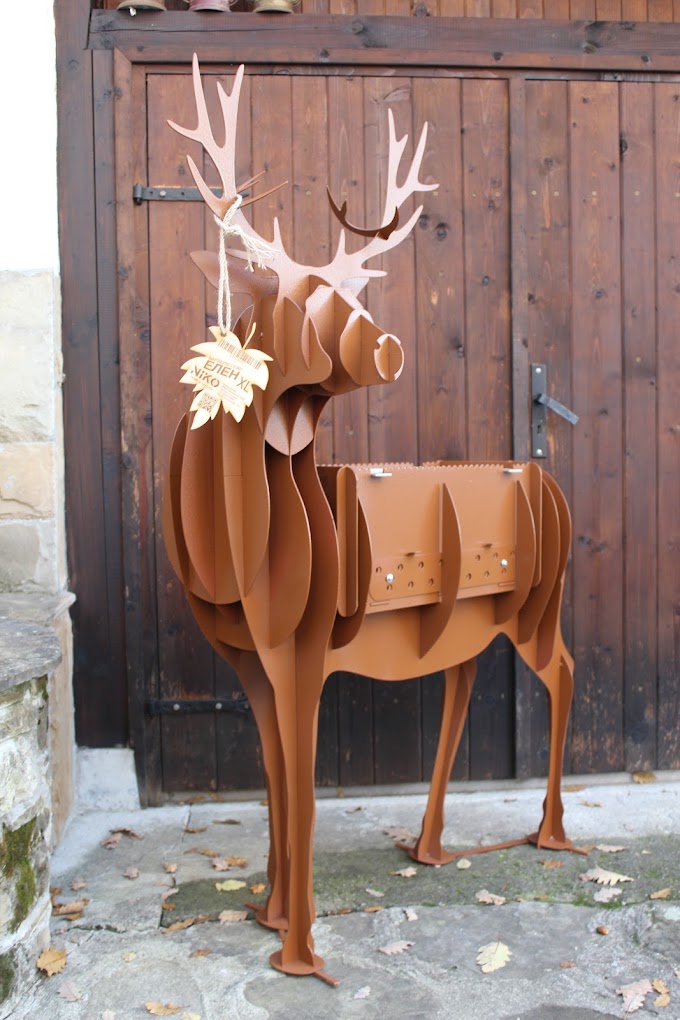
Laser cutting is a great way to display your logo, wall quote or your daughter's name on a necklace. Before you send us all those beautiful typography elements, there are a few things to keep in mind.
The text must be converted to a vector
Before exporting your file, be sure to convert all your text to vector. This function has different names depending on the program you are using. In Illustrator it's called Create Outlines, in Corel it's called Convert to Curves, in Inkscape it's called Object to Path. It's the same function with different names. The idea is that it changes your text from an editable font to a group of shapes. With that in mind, this is one of the last steps before exporting your file. Once your text is converted, you will no longer be able to edit it as text.

Once your font is converted, you'll need to consider how it's used. Individual letters or letters cut into a surface. When you flip your letters (negative) or cut them out of a shape, your letter now turns into a hole. You cannot cut a hole out of a hole.
Create bridges for reversed text
.png "Create bridges for reversed text")

You'll need to create bridges for all the letters like A, B, D, O, etc. Basically, you'll be turning your font into a pattern. We've all seen stencil letters. They all have bridges that connect the holes in the letters to the space around them. You can also find a template font to use, or you can create your own bridges. Click here for instructions with InkScape.

Design Tips for Laser Cutting Parts
- The file must be in DXF format
- The file must not contain a drawing frame
- The file must not contain text boxes and sizing
- The loops must be closed
- The details should be according to ours design guidelines
- The tolerances should be according to the standard BDS EN ISO 9013-1 and BDS EN ISO 22768-m
- Each attachment should contain only one detail
- The scale of the details must be 1:1
- Mirror details to be created separately
Start your project today. Configure your laser cutting details now!
Save time and effort by getting an instant quote for your laser cut parts. Compare prices between different materials, thicknesses and quantities and make it easier for your team or customers to choose the right option according to the specific requirements.