Maybe you've designed some cute placemats in Photoshop. Or you found a cool design online that is a jpeg (raster). You will quickly realize that there is no way to save this file as a vector file. Then you might be asking "what does a vector even mean?" Well, we're here to help. Not only will we explain the difference between vector and bitmap files, but we'll give you some ideas on how to make your files laser-ready when you start with a bitmap program.
Vector vs Raster
Raster images are made of pixels. A pixel is a single point or the smallest unit element in a display device. If you zoom in on a bitmap, you may start to see lots of tiny little squares.

Vector images are point-to-point mathematical calculations that form lines and shapes. If you zoom in on a vector graphic, it will always look the same.
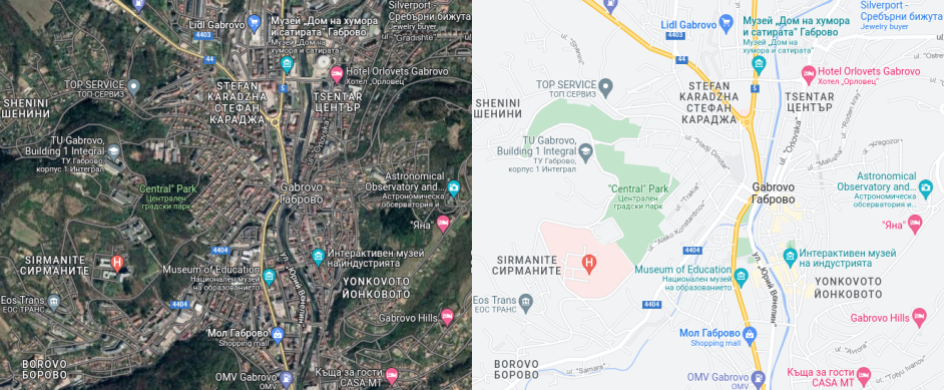
There are several ways to think about this. Have you ever used Google Maps satellite view? What you see is a satellite image of the area you are looking at. Your paths and markers are lost. Trying to find an address with this view would be difficult. A vector is like a map. With different lines that take you from point to point. The laser needs such a clear map with lines and coordinates to follow.
Another problem with designing in raster is that your image cannot be scaled. Going back to zooming in, we can see the loss of resolution when viewing the bitmap at a larger size. Vector graphics are not made up of pixels and are therefore resolution independent. You can scale your vector image to your heart's content and it will always look clean and crisp.
How do I know if my file is vector?
One way is to browse your file and enlarge it. If you see the pixelated edges, that's his raster. You can select the image and see the vector points. You can also tell by the type of format of your file.
- Vector file formats – AI, EPS, SVG, DXF, DWG, STP
- Non-vector file formats - JPG, PSD, BMP, PNG, GIF
Is there a way to convert my file to vector?
You can convert your files to vector using different methods. There are tools online that will convert for you, but they generally won't be as accurate as you want and may result in too many vector points. It is best to import your image into a vector drawing program such as Illustrator, Corel or AutoCAD or Inkscape.
Fortunately, these programs have tools to help you convert your image. We have created tutorials to follow in any of these programs which you can see below.

We are here to help.
Not sure about your design? Have a question or want advice? Email us at support@lasermaster.bg. We will contact you as soon as possible. The more we can help you, the more it helps us get you the best and fastest laser cut parts.
Design Tips for Laser Cutting Parts
- The file must be in DXF format
- The file must not contain a drawing frame
- The file must not contain text boxes and sizing
- The loops must be closed
- The details should be according to ours design guidelines
- The tolerances should be according to the standard BDS EN ISO 9013-1 and BDS EN ISO 22768-m
- Each attachment should contain only one detail
- The scale of the details must be 1:1
- Mirror details to be created separately
Start your project today. Configure your laser cutting details now!
Save time and effort by getting an instant quote for your laser cut parts. Compare prices between different materials, thicknesses and quantities and make it easier for your team or customers to choose the right option according to the specific requirements.